
🎮 Simple 2000 Series Vol. 105 - The Maid Uniform & Machinegun [T-EN]
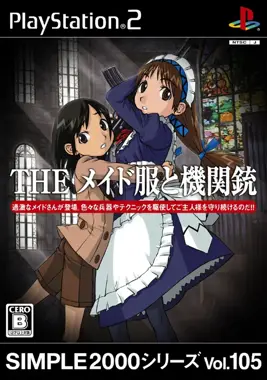
Simple 2000 Series Vol. 105 - The Maid Uniform & Machinegun [T-EN]
PlayStation 2 · Native play via PCSX2
<Launcher cache folder>\PCSX2\memcards(default:
%LocalAppData%\KhoGameHub)
1. Download KhoGameHub PC Launcher (once)
2. Run it (next → next → finish)
3. Click Play on PC — game launches automatically
4. PCSX2 downloads automatically on first launch


Open Related Rooms
Finding any related Room...
Description
Dive into the quirky yet entertaining world of Simple 2000 Series Vol. 105 - The Maid Uniform & Machinegun, where players face hilariously chaotic challenges. Combining elements of action and adventure, you control a maid armed with a machinegun as you navigate through quirky levels filled with enemies and obstacles. This unique title blends classic gameplay mechanics with a humorous art style, creating a memorable experience for those who appreciate retro charm. Prepare for intense battles and unexpected surprises in this hidden gem that offers both nostalgia and excitement.
Tags: action adventure shooter single player🔵 PS2 Play Guide
- Install KhoGameHub Launcher (once only) — PCSX2 will be downloaded automatically on first play. Click Play on PC (PCSX2), the game opens automatically.
⚠️ Windows SmartScreen may show a warning on first install — click More info → Run anyway to continue. This is a common warning for independent apps that haven't registered a Microsoft code-signing certificate yet; the app is completely safe. We're finalizing the process to publish on the Microsoft Store soon, after which this warning will no longer appear. - Android: Install the KhoGameHub app → tap Open in App to play directly.
- Linux: Download KhoGame Linux Launcher (Ubuntu/Debian/Arch), run
chmod +x khogame-launcher && ./khogame-launcher, then click Play on PC again. - Controls: Plug in a gamepad (Xbox/DualShock both work). Switch controller type using the toggle button on the page.
💾 Saving
PCSX2 uses a virtual memory card — save in-game like a real PS2. Save state: F1 (save) / F3 (load).
⚙️ PCSX2 Settings
- Graphics → Renderer: Select Vulkan (best) or Direct3D 12/11 if Vulkan fails.
- Internal Resolution: 2x Native (1440p) or 3x/4x on powerful hardware — sharp image, eliminates PS2's blocky pixels.
- Texture Filtering: Bilinear (forced) for smoother textures.
- Anisotropic Filtering: 8x or 16x for clearer distant scenery.
- Widescreen Patches: Settings → Patches → enable Widescreen if available (not all games support it).
- Speedhacks: Settings → Emulation → EE Cycle Rate: -1 or -2 if games run slowly on weak hardware.
- BIOS: The Launcher installs BIOS automatically on first run — no extra steps needed.
🎮 Controller Setup
Settings → Controllers → Port 1 → DualShock 2 → Configure. DualShock/DualSense works via USB or Bluetooth. Analog mode: press the center LED button to activate sticks.
💿 Multi-disc Games
The game starts from disc 1. To switch discs: in PCSX2 → System → Change Disc → select the disc2.chd file in the cache folder.
🖥️ Hardware Requirements — PCSX2 Qt (modern build)
✅ PCSX2 Qt build (1.7+) is very lightweight and well-optimized — mid-range laptops from 2016+ can run most PS2 games at native resolution.
| Component | ⚠️ Minimum (native res) | ✅ Recommended (2x–4x upscale) |
|---|---|---|
| 🪟 Windows / 🐧 Linux | ||
| CPU | Dual-core 2.4 GHz with SSE2 (i3-3xxx / FX-4xxx) | i5-6400 / Ryzen 5 1600 · 3.2 GHz+ |
| RAM | 2 GB | 4 GB DDR4 |
| GPU | Intel HD 4000 / any GPU with OpenGL 3.0 / DX10 | GTX 1060 / RX 580 (Vulkan) — for 3x–4x upscaling |
| Storage | HDD | SSD — faster CHD decode on first game load |
| OS | Windows 8.1 64-bit / Ubuntu 18.04 | Windows 10/11 64-bit / Ubuntu 22.04+ |
| 🤖 Android (AetherSX2 / NetherSX2) | ||
| SoC | Snapdragon 600+ / mediatek p70 (native res) | Snapdragon 845 / Dimensity 820+ (2x upscale) |
| RAM | 3 GB · Android 8.0+ | 4 GB · Android 10+ |
* Heavy games like God of War 2, Shadow of the Colossus need ~3.0 GHz+ single-thread CPU for 60fps. 2D/simple games run well even on minimum spec.
🛠️ Troubleshooting
- "Invalid file" error (Failed to Open CDDVD 'xxx.chd'): Click the Clear Cache button on the game page to remove the corrupted cache. This usually happens when the ROM download was interrupted or the downloaded file got corrupted. If it still doesn't fix it, you can go to the KhoGameHub Launcher's install folder, find the corrupted ROM cache file, and delete it manually.
- New features not working after a launcher update: Open the Launcher and check you're on the latest version; if not, re-download the latest build from the server to fully update the hybrid app's features.






Comments(0)