
🎮 Final Fantasy II - 20th Anniversary Edition
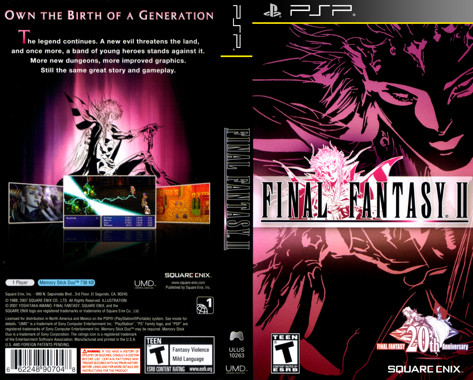
Final Fantasy II - 20th Anniversary Edition
PlayStation Portable · Native play via PPSSPP
Documents\PPSSPP\PSP\SAVEDATA
1. Download KhoGameHub PC Launcher (once)
2. Run it (next → next → finish)
3. Click Play on PC — game launches automatically
4. Requires PPSSPP to be installed


Open Related Rooms
Finding any related Room...
Description
Final Fantasy II - 20th Anniversary Edition refreshes the early, experimental JRPG with a salvaged, character-driven progression and challenging encounters. On PSP, players manage a leveling-by-use system, equipment choices and tough boss battles that reward careful planning over button-mashing. The anniversary edition preserves the retro visuals and memorable melodies while polishing menus and localization, making it a compact, nostalgia-heavy experience for fans of classic Square design. Expect punishing bosses, a focus on party survival and memorable set-pieces that emphasize strategy and adaptation rather than modern conveniences.
Tags: rpg single player classic difficulty boss fight english translated🎮 PSP Play Guide
- Install KhoGameHub Launcher (once only) and PPSSPP — then click Play on PC, the game opens automatically.
⚠️ Windows SmartScreen may show a warning on first install — click More info → Run anyway to continue. This is a common warning for independent apps that haven't registered a Microsoft code-signing certificate yet; the app is completely safe. We're finalizing the process to publish on the Microsoft Store soon, after which this warning will no longer appear. - Android: Install the KhoGameHub app → tap Open in App to play directly.
- Linux: Download KhoGame Linux Launcher (Ubuntu/Debian/Arch), run
chmod +x khogame-launcher && ./khogame-launcher, then click Play on PC again. - Controls: Plug in a gamepad and it works immediately. To remap buttons → open PPSSPP → Settings → Controls.
💾 Saving
PPSSPP manages the memory stick automatically. Save via the in-game menu just like a real PSP. Save state: F1 (save) / F3 (load).
⚙️ PPSSPP Settings
- Graphics → Backend: Select Vulkan (best) or Direct3D 11 if Vulkan fails.
- Rendering Resolution: 2x PSP (720p) for sharper image, 4x on powerful hardware.
- Texture Filtering: Anisotropic 4x or 16x for smoother textures.
- VSync: Enable to prevent screen tearing.
- Frame Skipping: Off — only enable if your device stutters.
- Audio → Latency: If audio lags → reduce Buffer Size to 32ms.
🎮 Controller Setup
Settings → Controls → Control Mapping → select each button to remap. PSP Analog Stick → gamepad Left Stick. Home button → Escape.
🏆 RetroAchievements
Click Achievements on the page to link your RetroAchievements account. After the first login in PPSSPP, auto-login will work.
🖥️ Hardware Requirements — PPSSPP
| Component | ⚠️ Minimum | ✅ Recommended |
|---|---|---|
| 🪟 Windows / 🐧 Linux | ||
| CPU | Dual-core 2.0 GHz (Intel Core i3 / Ryzen 3) | Quad-core 3.0 GHz+ (i5-8400 / Ryzen 5 3600) |
| RAM | 2 GB | 4 GB |
| GPU | Intel HD 4000 / any GPU with OpenGL 2.0 | GTX 1050 / RX 570 (Vulkan) — for 4x resolution |
| OS | Windows 10 / Ubuntu 18.04 | Windows 10/11 / Ubuntu 22.04+ |
| 🤖 Android | ||
| SoC | Snapdragon 625 / Helio P60 | Snapdragon 720G+ / Dimensity 700+ |
| RAM | 3 GB · Android 7.0+ | 4-6 GB · Android 9.0+ |
* PPSSPP is very lightweight — most mid-range phones from 2019+ run well at 1x/2x resolution.
🛠️ Troubleshooting
- "Could not load game" error: Click the Clear Cache button on the game page to remove the corrupted cache. This usually happens when the ROM download was interrupted or the downloaded file got corrupted. If it still doesn't fix it, you can go to the KhoGameHub Launcher's install folder, find the corrupted ROM cache file, and delete it manually.
- New features not working after a launcher update: Open the Launcher and check you're on the latest version; if not, re-download the latest build from the server to fully update the hybrid app's features.





Comments(0)