EmulatorJS is a multi-system browser-based emulator running directly on KhoGameHub.com, letting you play legendary retro titles — Mario, Contra, Pokémon, Metal Slug, Street Fighter, Yu-Gi-Oh! — with zero downloads and zero installations. Just open your browser and start playing.
This guide covers everything you need to get the most out of your retro gaming experience.
Table of Contents
- Understanding the EmulatorJS Interface
- Basic Settings Configuration
- How to Save and Load Your Game
- Setting Up Your Gamepad
- Keyboard Configuration
- Fullscreen and Display Options
- Performance Optimization and Lag Fixes
- Playing Online with Netplay
- Loading Your Own ROM Files
- Image Quality and CRT Filters
- Pro Tips and Tricks
1. Understanding the EmulatorJS Interface {#interface}
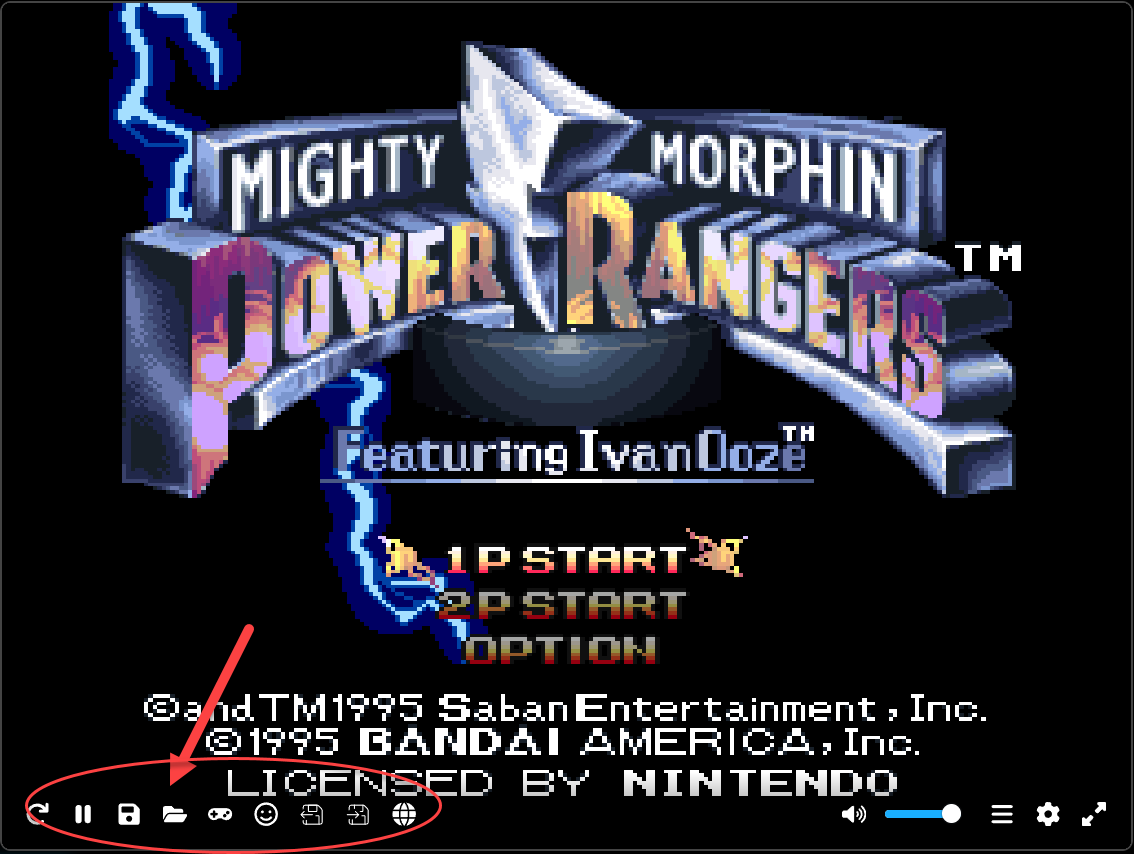
When you launch any game on KhoGameHub, the EmulatorJS interface loads automatically. Here is what you will see:
- Game screen — centered in your browser window
- Control menu — located at the bottom or corner of the screen
The control menu includes:
| Icon | Function |
|---|---|
| ⚙️ Settings | Configure core, BIOS, graphics and audio |
| 💾 Save / Load | Save and restore game states |
| 🎮 Gamepad | Map keyboard keys or controller buttons |
| 🔊 Audio | Toggle sound and adjust volume |
| 🔄 Reset | Restart the current game |
| ⏸️ Pause | Pause or resume gameplay |
| ⤢ Fullscreen | Toggle fullscreen mode |
2. Basic Settings Configuration {#settings}
Click the ⚙️ Settings icon to access the configuration panel.
| Setting | Description |
|---|---|
| Video Settings | Adjust aspect ratio, enable scanlines, integer scaling, fullscreen behavior |
| Audio Settings | Toggle audio on/off, adjust volume, fix audio latency |
| Performance | Enable high-performance mode, configure frame skipping to reduce lag |
| Save Options | Export, import, or delete save state files |
3. How to Save and Load Your Game {#save-load}
Save State — The Recommended Method
Save State is the most reliable way to save your progress in EmulatorJS. It captures the complete state of the virtual machine — RAM, CPU, your exact position in the game — at any moment.
How to save:
- While playing, open the menu
- Select Save → choose a slot (Slot 1, Slot 2, etc.)
- Your game state is saved instantly
How to load:
- Open the menu → select Load → choose the corresponding slot
- Or use Import Save File if you previously downloaded your save
You can also download your save file (.state or .txt format) to back it up locally or transfer it to another device.
💡 Pro tip: Always save before a difficult boss fight or a long cutscene. Save State lets you resume from the exact frame you stopped on.
In-Game Save — Use With Caution
In-game saving works the same way it did on original hardware — using the game's built-in save menu (Start/Select button or in-game Save Points).
- Save data is written to a virtual memory card (
.srmor.savfile) - You can download this file for backup and transfer to other devices
⚠️ Important: After saving in-game, do not close your browser immediately. Wait 5–10 seconds or trigger one scene transition to allow the browser to sync the save file to persistent storage. When you return, select Load Game or Continue from the game's start screen.
4. Setting Up Your Gamepad {#gamepad}
EmulatorJS supports USB and Bluetooth controllers natively through the browser.
Steps:
- Connect your controller via USB or Bluetooth — the browser detects it automatically
- Click the 🎮 Gamepad icon in the menu
- Press each button on screen (A, B, Start, Select, L, R, D-Pad) and press the corresponding button on your controller
- Click Save Config when done
✅ Xbox, PlayStation, and 8BitDo controllers are usually recognized automatically with default mappings — no manual configuration needed.
5. Keyboard Configuration {#keyboard}
Steps:
- Click the 🎮 Keyboard icon
- The configuration window shows a list of game buttons (A, B, Start, Select, directional keys)
- Click any button field → press the keyboard key you want to assign
- Click Save Config
⚠️ Keyboard configurations are stored in your browser's local storage. If you clear your browser cache or switch to a different device, you will need to reconfigure your key bindings.
6. Fullscreen and Display Options {#display}
- Press F11 or click the Fullscreen button in the menu to enter fullscreen mode
- Enable Integer Scaling for sharper pixel-perfect display — especially important for 8-bit and 16-bit games
- Set Filter = None to disable blur and see the original crisp pixel art
7. Performance Optimization and Lag Fixes {#performance}
If your game is running slowly or stuttering, try these fixes:
In EmulatorJS settings:
- Go to Settings → Performance → Skip Frames to reduce processing load
- Disable scanline filters or graphic shaders
- Lower the audio buffer size if experiencing sound lag
Browser recommendations:
- ✅ Use Google Chrome or Microsoft Edge (Chromium-based) for best performance
- ❌ Avoid Firefox — it has known performance issues with EmulatorJS
- Always use the latest browser version
- Close other heavy tabs while playing
8. Playing Online with Netplay {#netplay}
EmulatorJS supports real-time online multiplayer through WebRTC technology.
How to start a Netplay session:
- Click Create Room — select the server closest to your location for lowest latency
- Share the room link with your friend
- Your friend clicks Join Room and enters the link
- Both players need to be using the same ROM
- The game syncs in real time over WebRTC
💡 A stable internet connection is essential for smooth Netplay. Wired connections are recommended over Wi-Fi for competitive games.
9. Loading Your Own ROM Files {#load-rom}
- Click the 📁 Load ROM button
- Select your ROM file — supported formats include
.zip,.nes,.gba,.sfc,.bin, and more - EmulatorJS automatically detects the console system and boots the game
⚠️ Note: Some platforms limit ROM file size (typically under 50MB).
10. Image Quality and CRT Filters {#image-quality}
Many players notice that retro games look sharper and more pixelated on modern LCD screens than they remember. This is completely normal.
Why this happens: Modern LCD screens display every pixel with perfect precision. Original CRT televisions (the tube TVs from the 80s and 90s) naturally blended pixels together with their electron beam scanning, creating a softer, more organic look.
How to restore that classic feel:
Go to Settings → Video → Shader / Filter and choose one of these options:
| Filter | Effect |
|---|---|
| Bicubic | Smooth, natural look — closest to original CRT feel. Most popular choice. |
| 2xScaleHQ | Sharper upscaling while maintaining detail |
| Scanlines | Simulates CRT scan lines for authentic retro aesthetics |
| None | Raw pixel output — purist/pixel-art preference |
💡 Recommendation: Start with Bicubic — it balances sharpness and smoothness perfectly without making the image look blurry.
11. Pro Tips and Tricks {#tips}
- Save State frequently — especially before boss fights, difficult sections, or after long progress
- Name your save files clearly if you download them locally (e.g.,
pokemon-fire-red-gym3.state) - Transfer saves between devices by downloading your
.statefile and importing it on another device - Quick save shortcut: Check if your platform supports
Ctrl + S/Ctrl + Lfor instant save/load - Always use the latest browser to avoid audio glitches, video rendering issues, or WebRTC problems
- Backup your save files regularly — browser storage can be cleared accidentally
Feature Summary
| Feature | Status |
|---|---|
| Save State | ✅ Fully supported |
| In-Game Save | ✅ Fully supported |
| Gamepad Support | ✅ USB & Bluetooth |
| Custom Keyboard Mapping | ✅ Fully supported |
| Fullscreen Mode | ✅ Supported |
| Netplay (Online Multiplayer) | ✅ Available via WebRTC |
| CRT Filters & Shaders | ✅ Multiple options |
| Load Custom ROMs | ✅ Supported |
EmulatorJS on KhoGameHub is the fastest and simplest way to experience classic retro games in your browser — no downloads, no installations, no hassle. Save with Save State, configure your controller once, and you are ready to relive the golden age of gaming.
Ready to play? Browse our full library of retro games on KhoGameHub — over 9,000 titles across NES, SNES, GBA, PS1, Game Boy, and more.