Whether you're jumping into a classic PS1 RPG or battling through a Nintendo DS adventure, running retro games in a browser is a surprisingly smooth experience — when everything is set up correctly. This guide covers the most common issues players run into on KhoGameHub, along with practical fixes and pro tips to get the most out of your sessions.
Table of Contents
1. Why Do Lightweight Games Work Fine But PS1 or NDS Shows a "Startup Error"?
This is one of the most frequently asked questions, and the answer comes down to hardware demand.
3D systems require significantly more processing power. Consoles like the PS1 and Nintendo DS render three-dimensional graphics, which must be emulated through WebAssembly (WASM) inside your browser. That's a heavy workload — far more demanding than running a 2D NES or SNES title.
Common causes and fixes:
- Older chipsets (Dimensity 700, Snapdragon 6xx series): Browsers on these devices may automatically terminate heavy processes to prevent freezing. If this happens, try closing all background apps and reloading the game.
- Default browser on Samsung, OPPO, or Vivo: Manufacturer browsers often strip out advanced rendering instructions needed for heavier emulation cores. Always use the latest version of Google Chrome or Microsoft Edge for the best compatibility.
- WebGL2 not enabled: For demanding systems — PS1, NDS, PC Engine CD (PCE CD), and TurboGrafx CD (TGCD) — WebGL2 must be active in your browser. Check your browser's flags or settings if games on these platforms fail to load.
2. Ads Are Covering the Screen — What Should I Do?
Ads are what keep KhoGameHub's servers running and the game library free for everyone.
The key tip: wait for the ad to finish loading completely (usually 3–5 seconds) before closing it. Tapping the close button too early — while the ad is still transitioning — can accidentally redirect you to another page.
If you'd like an entirely ad-free experience, consider supporting the platform:
- Donate to help keep the servers strong
- Upgrade to Premium for a completely clean, distraction-free gaming environment
3. Can I Share One Account Across Multiple Devices?
Yes — with a limit. To maintain fair server performance for the whole community, Premium accounts can be logged in on up to 5 devices simultaneously.
The system automatically detects each device by name. If a 6th device attempts to log in, it will be blocked until you sign out from one of the existing devices. So if you're sharing an account, keep that limit in mind.
4. PS1 / Sega / PCE CD Games Take Forever to Load — Any Way to Speed This Up?
Large disc-based games (PS1, Sega CD, PCE CD) typically have ROM files ranging from 200MB to 400MB. Load time depends entirely on your internet connection speed.
The good news: game data is cached to your device after the first download. From the second session onward, the game loads almost instantly without re-downloading.
Best practice: Use a stable Wi-Fi connection rather than mobile data (4G/5G). Unstable connections mid-download can corrupt the loading process and force a full restart.
5. How Do I Save My Game Progress?
EmulatorJS supports two types of saves, both stored locally in your browser:
- In-game Save (SaveCard): works just like the original memory card on console
- Save State: captures the exact moment you're playing, letting you resume from any point
Important: If you clear your browser cache or play in Incognito/Private mode, all local save data will be permanently lost.
To protect your progress long-term, download a backup of your save files to your device regularly. Or better yet, upgrade to Premium to access Cloud Save — your saves sync to your account and are accessible from any device, any time.
6. The Game Freezes or Goes Black Screen — How Do I Report It?
Occasionally a ROM file may have an issue that causes the game to freeze or display a black screen mid-session.
To report it: look for the flag icon (🏴) in the gameplay toolbar. Click it, select the type of issue you're experiencing, and submit. The admin team reviews reports and patches problematic ROM files directly.
7. How Do I Play With 2 Players or Use Netplay Online?
Local 2-player (same screen): Click the gamepad icon in the emulator toolbar. Under Player 1, configure controls for the first player, then switch to the Player 2 tab and set controls for the second. Both players can use the same keyboard, separate gamepads, or any combination.
Online Netplay (remote play): KhoGameHub supports two netplay modes:
| Mode | How It Works | Best For |
|---|---|---|
| Video Stream (default) | Host runs the game and streams video to the joiner | Most stable; joiner needs minimal hardware |
| Game Engine Sync | Each device runs the game independently; only inputs and frames are synced | Lower latency in theory; still experimental |
Tip for Video Stream mode: The host's machine does all the heavy lifting. Use a PC or a powerful device as the host to ensure a smooth experience for everyone in the room.
8. How Do I Sign Up for Premium and What Do I Get?
To upgrade:
- Register a free account on KhoGameHub
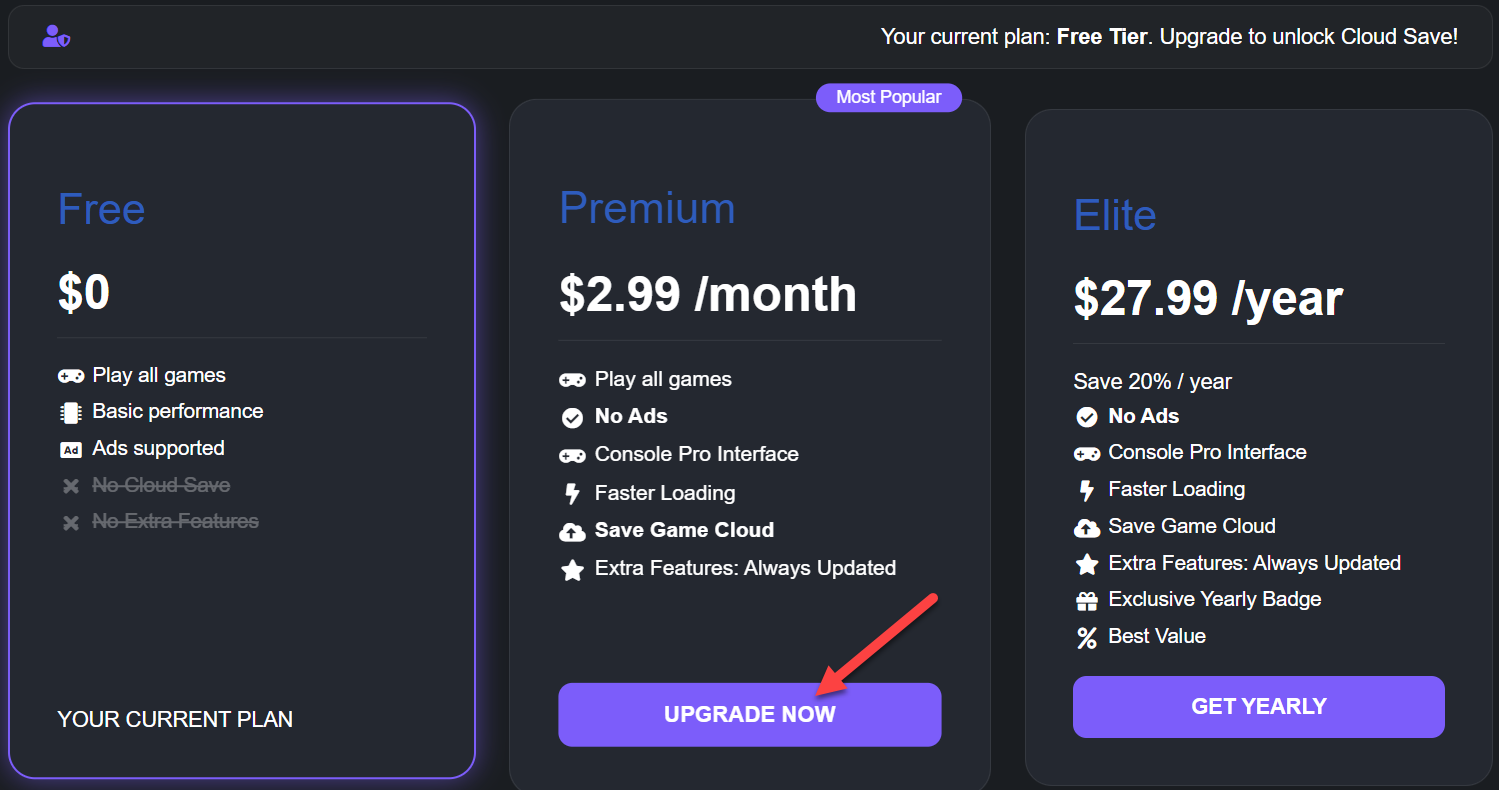
- Visit the Get Premium page and choose a monthly or yearly plan
- Click Upgrade Now and pay via Bank VietQR / PayPal— If you are in VietNam may scan the QR code with any banking app or e-wallet.
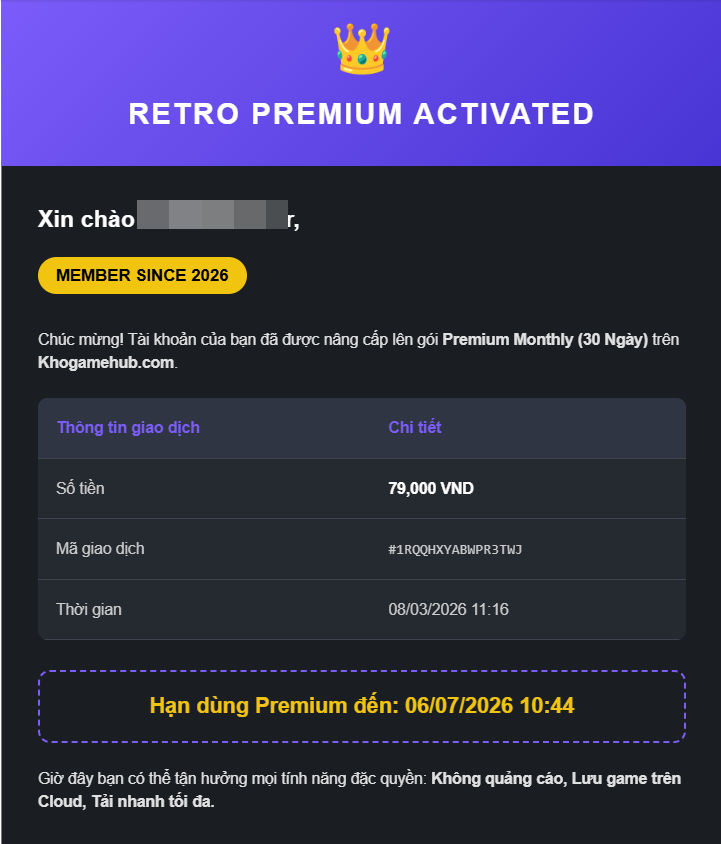
- You'll receive a confirmation email once your Premium status is activated
Premium benefits at a glance:
- Ad-free browsing and gameplay — no interruptions, lighter page loads, pure focus on gaming
- Unlimited Cloud Save — all save files and states sync to your account; resume on any device without losing progress
- Exclusive emulator features — advanced gamepad mapping and mobile virtual pad enhancements, available to Premium members first
- Priority admin support — direct assistance via the official fanpage for troubleshooting and guidance
Pro Tips for Hardcore Gamers
Getting decent performance is easy. Getting great performance takes a bit of setup. Here's what experienced KhoGameHub players do:
Force landscape mode Always rotate your phone to landscape and enable Fullscreen in the EmulatorJS settings. It removes browser UI chrome and gives you the closest experience to playing on real console hardware.
Connect a Bluetooth gamepad KhoGameHub natively supports PS4 and Xbox controllers via Bluetooth. Pair your controller with your phone or PC — the emulator will automatically detect it and map the buttons. No configuration needed.
Boost FPS on weaker Android devices Close every background app before launching a heavy game. Freeing up RAM gives the browser more headroom to run the emulator at full speed.
Improve visual quality with shaders Not satisfied with how a game looks? Inside the emulator, go to Settings → Graphics Settings → Shader → Mix Frame. This blending mode smooths out pixel edges and produces a more balanced, visually pleasing image — especially noticeable on PS1 and GBA titles.
Have a question not covered here? Use the 🏴 report button in-game or reach out via the KhoGameHub fanpage. Happy gaming.