Overview
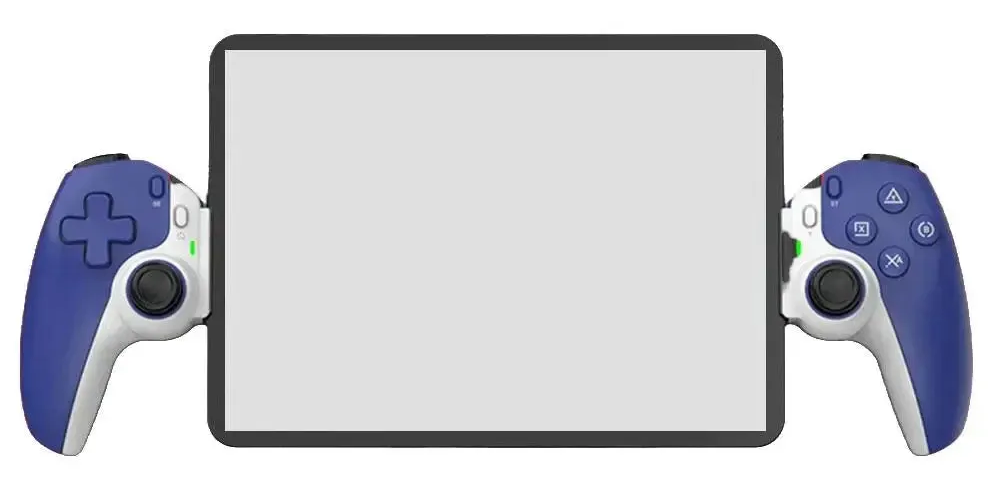
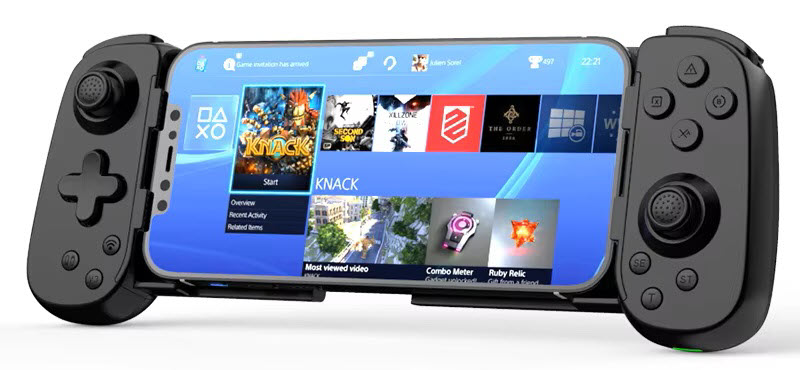
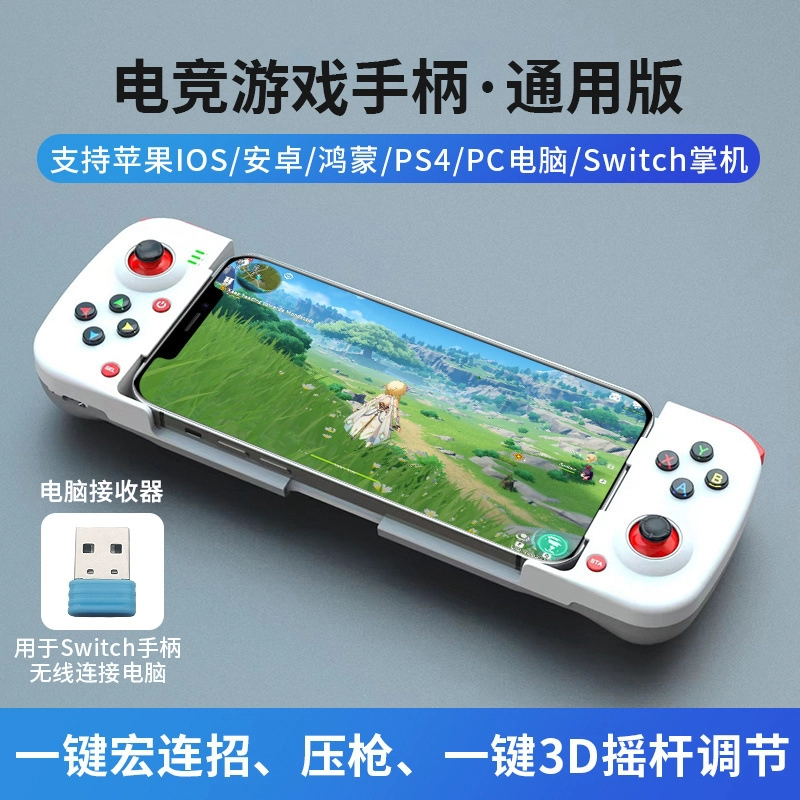
The BSP D3 is one of the most versatile wireless controllers available for multi-platform gaming. With Bluetooth 5.0 and multiple pairing modes, it connects to iPhone, iPad, Android, Windows PC, Nintendo Switch, and PS3/PS4 via USB — all from a single controller. If you're playing retro games through an emulator or grinding mobile titles, the D3 adapts to your setup without any extra hardware.
This guide covers every connection mode in detail, so you get a stable pairing with full button functionality on whichever device you're using.
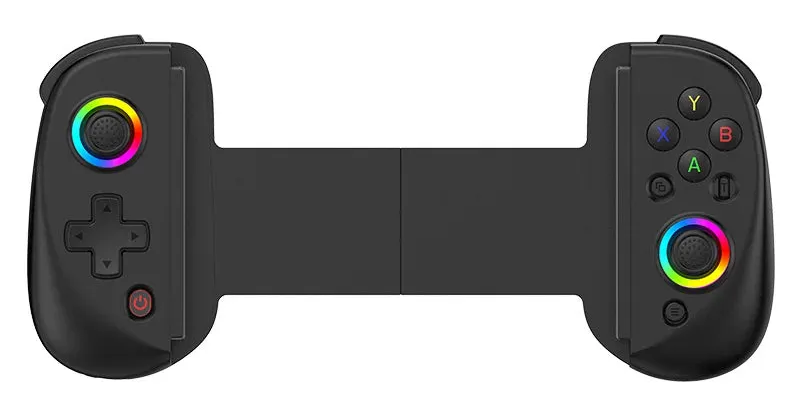
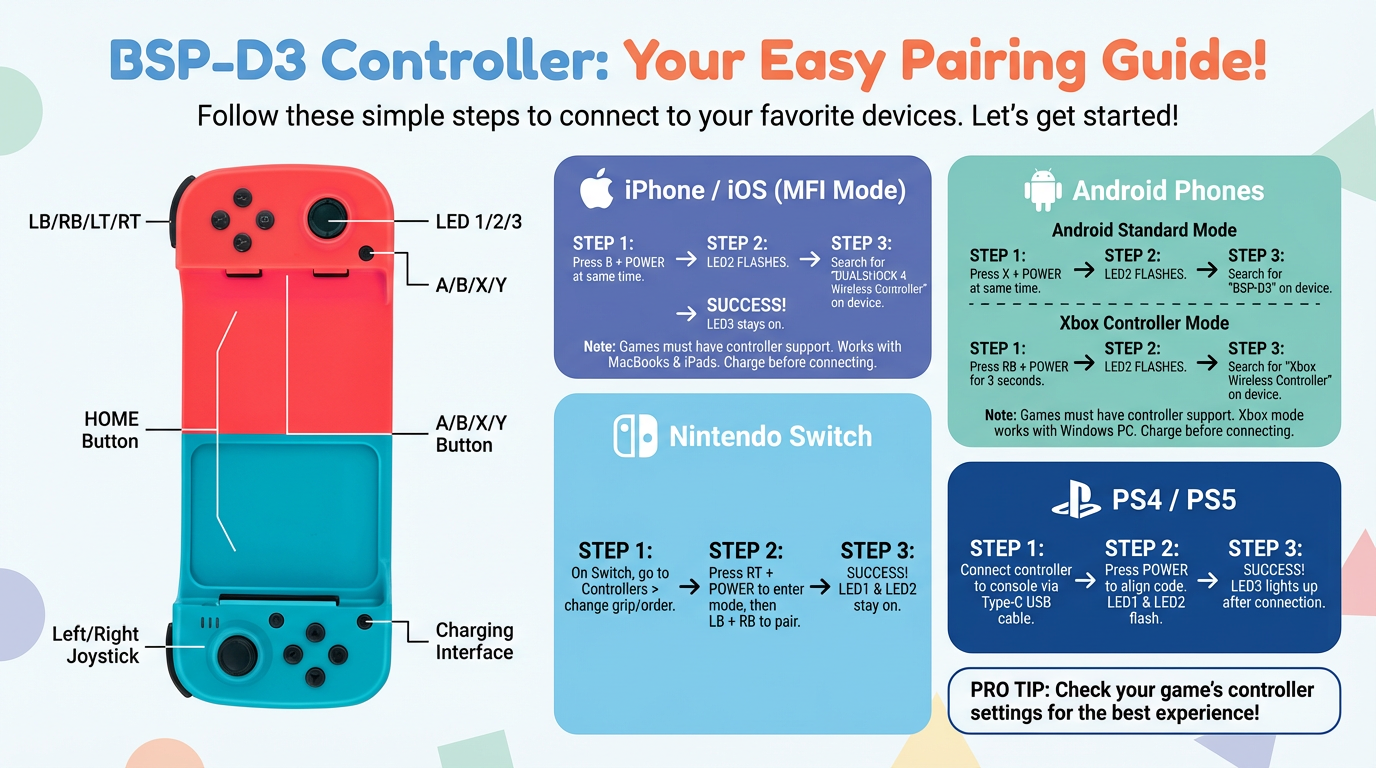
Button Layout & Features
Front Face
- LB — Left Bumper
- RB — Right Bumper
- LED1 / LED2 / LED3 — Status indicator lights
- Left Joystick / L3 — Click to activate L3
- Home button — Platform navigation
- D-Pad — 4-directional input
- A / B / X / Y — Action buttons
- Select / Start — Menu controls
- Right Joystick / R3 — Click to activate R3
- USB-C port — Charging and wired connection
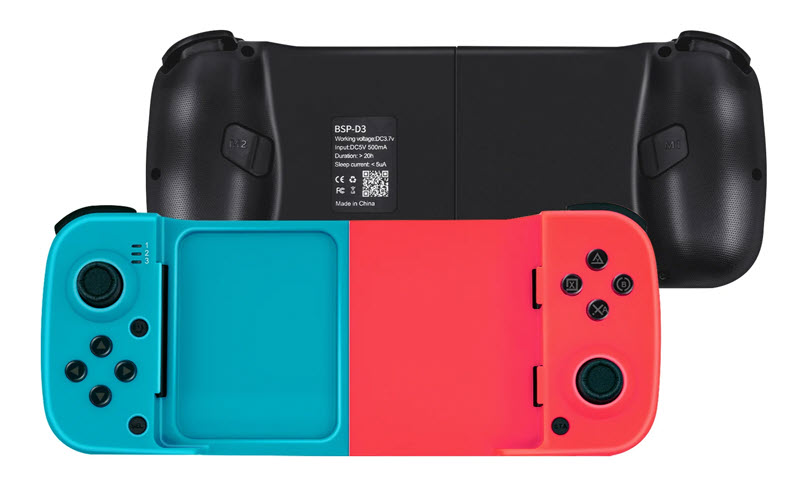
Rear Face
- LT — Left Trigger (analog)
- RT — Right Trigger (analog)
- M1 / M2 — Programmable macro paddle buttons
Power & Battery
- Input: DC 5V – 500mA (USB-C charging)
- Battery life: approximately 20 hours continuous use
💡 Key difference vs BSP D5: The D3 offers a longer battery life (20h vs 8h) and adds PS3/PS4 wired support, making it a better fit for console-style sessions at a desk.
Connect to iPhone / iOS (MFi Mode)
The BSP D3 uses MFi (Made for iPhone) protocol on iOS, which means it works with any iOS game that officially supports controllers — including Genshin Impact, Call of Duty Mobile, Fortnite, and Minecraft.
- Power on the controller by pressing the Home button.
- Press B + Power simultaneously to enter iOS MFi pairing mode.
- LED2 starts blinking — controller is discoverable.
- On your iPhone or iPad, go to Settings → Bluetooth.
- Select "DUALSHOCK 4 Wireless Controller" from the device list.
- Pairing is complete when LED3 stays solid.
💡 Note: This mode also works on iPad and MacBook. Requires iOS 13 or later for full MFi support.
Connect to Android
The BSP D3 offers two Bluetooth modes for Android — choose based on your game's controller requirements:
Standard Android Mode (HID)
Best for most Android games and emulators. The controller is recognized as a standard gamepad.
- Press X + Power simultaneously.
- LED2 blinks — controller is in pairing mode.
- On your Android device, go to Settings → Bluetooth and scan.
- Select "BSP-D3" from the list.
- LED3 stays solid when connected.
Xbox Emulation Mode
The controller identifies as an Xbox Wireless Controller — better compatibility with games optimized for Xbox input layout.
- Press and hold RB + Power for 3 seconds.
- LED2 blinks — controller is discoverable.
- On your Android device, find and select "Xbox Wireless Controller".
- LED3 stays solid when connected.
| Mode | Button Combo | Device Name | Best For |
|---|---|---|---|
| Standard Android | X + Power | BSP-D3 | Emulators, most Android games |
| Xbox Mode | RB + Power (hold 3s) | Xbox Wireless Controller | Xbox-optimized Android & PC games |
Connect to Windows PC
On Windows 10 and above, use Xbox Emulation Mode for the broadest compatibility — Steam, emulators, and most PC games recognize it instantly.
- Press and hold RB + Power for 3 seconds.
- LED2 blinks rapidly — controller is discoverable.
- On your PC, open Settings → Bluetooth & devices → Add device.
- Select "Xbox Wireless Controller".
- Connection confirmed when LED3 stays solid.
💡 Emulator users: RetroArch, MAME, and EmulatorJS all auto-detect the D3 in Xbox mode. No manual button mapping required in most cases.
Connect to Nintendo Switch
- On your Nintendo Switch, navigate to System Settings → Controllers → Change Grip/Order.
- On the BSP D3, press RT + Power to enter Switch Mode.
- Press LB + RB on the controller to start searching.
- Select the controller name when it appears on the Switch screen.
- Pairing is complete when LED1 and LED2 both stay solid.
Connect to PS3 / PS4 (Wired)
PS3 and PS4 connection uses the included USB-C cable — no Bluetooth pairing needed.
- Connect the BSP D3 to your PS3 or PS4 using the USB-C cable.
- Press the Power button on the controller to begin syncing.
- LED1 and LED2 blink during synchronization.
- When LED3 turns solid, the controller is ready to use.
LED Status Reference
| LED State | Meaning |
|---|---|
| LED2 blinking | Controller is in pairing/discoverable mode |
| LED1 + LED2 blinking | Syncing with PS3/PS4 or Nintendo Switch |
| LED3 solid | Successfully connected (iOS, Android, PS3/PS4) |
| LED1 + LED2 solid | Successfully connected to Nintendo Switch |
| All LEDs off | Controller is powered off or battery depleted |
Using BSP D3 with EmulatorJS on KhoGameHub
The BSP D3 works with all games in the KhoGameHub library through EmulatorJS. Here's how to get the best experience:
- On PC: Pair in Xbox Mode via Bluetooth before opening your browser. EmulatorJS detects it automatically on page load.
- On Android: Use Standard Android Mode (X + Power). Open Chrome, navigate to your game, and the controller activates when the emulator loads.
- On iPhone/iPad: Connect in MFi Mode first, then open Safari and launch your game. Tap the screen once to give the emulator focus before using the controller.
- Button mapping: Go to the gamepad icon in the EmulatorJS toolbar to remap any button if the default layout doesn't match your preference.
🎮 Tested on KhoGameHub: BSP D3 works seamlessly across NES, SNES, GBA, PS1, and NDS titles. For PS1 games, Xbox Mode on Android delivers the lowest input latency.
Specifications
| Specification | Detail |
|---|---|
| Model | BSP-D3 |
| Connectivity | Bluetooth 5.0 / USB Type-C wired |
| Input Voltage | DC 5V – 500mA |
| Battery Life | ~20 hours continuous |
| Compatible Platforms | iOS, Android, Windows PC, Nintendo Switch, PS3, PS4 |
| Pairing Modes | MFi (iOS), Standard HID (Android), Xbox Mode (Android/PC), Switch Mode, USB Wired |
| Programmable Buttons | M1 / M2 rear paddles |
| LED Indicators | LED1, LED2, LED3 (status display) |