Overview & Compatibility
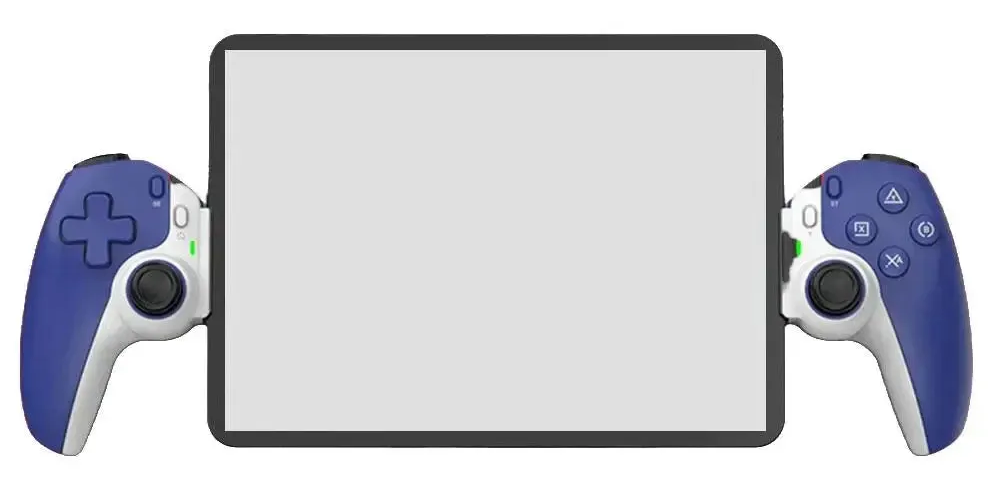
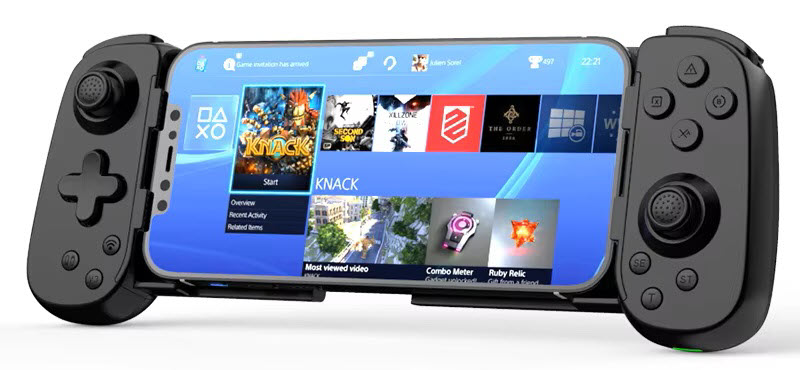
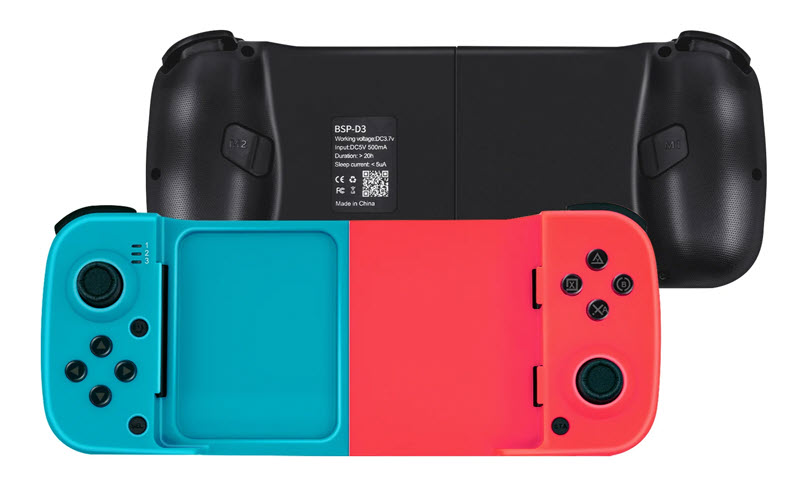
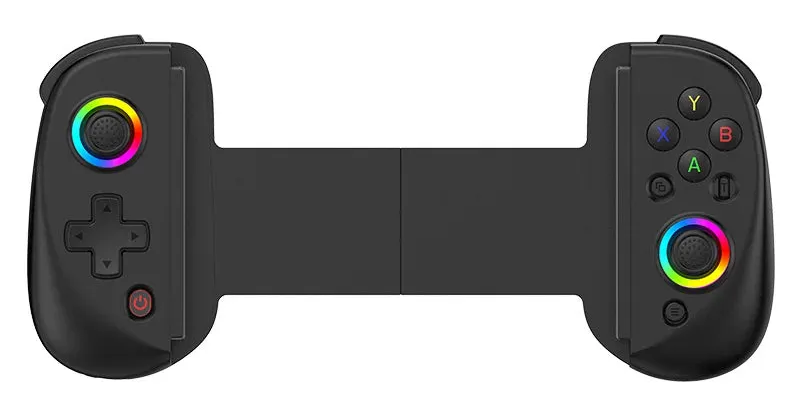
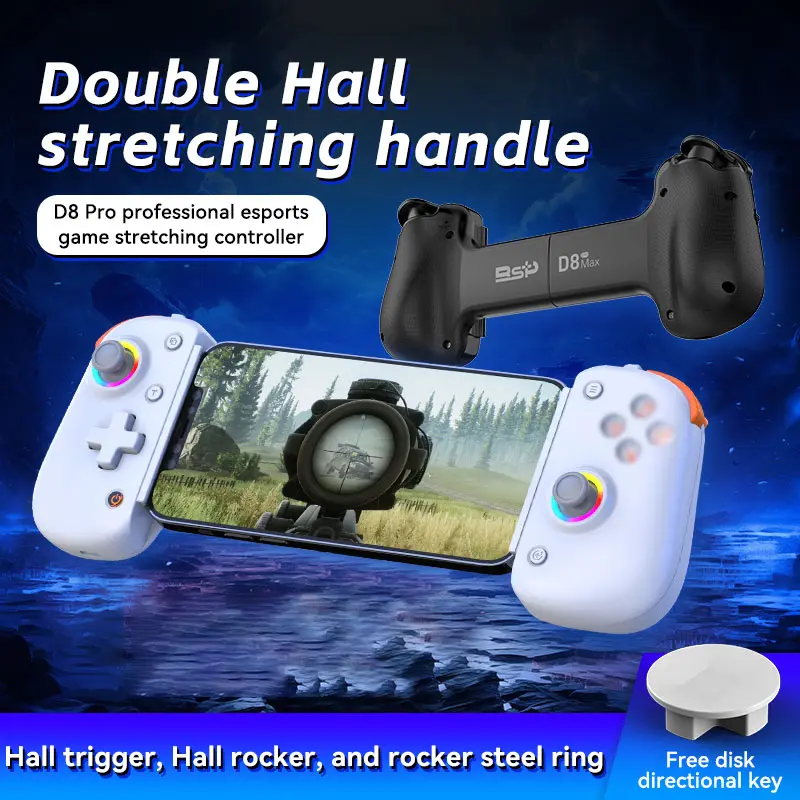
The Hechuang BSP D8 is a feature-packed wireless controller with an extendable grip that fits phones from 129mm to 252mm wide — one of the widest ranges in its class, covering everything from compact iPhones to large Android flagships and tablets.
With 9 distinct connection modes, the D8 handles virtually every gaming scenario: casual mobile gaming, MFi game support on iOS, emulator sessions on Android and PC, Nintendo Switch play with gyroscope support, and PS3/PS4 via wired USB. A 2.4G receiver option adds ultra-low latency wireless for PC gaming.
Full platform compatibility:
- Android 6.0+ — ShootingPlus V3 mode and Standard HID mode
- HarmonyOS — Same as Android modes
- iOS 10.1–13.3.1 — ShootingPlus V3 touch mode
- iOS 13.4+ — Single-touch mode
- iOS 13.0+ MFi games — via ShanWan MFi app
- Nintendo Switch — Bluetooth with gyroscope support
- Windows 10 — Bluetooth X-Input and wired USB
- PC / PS3 / Switch — Wired via USB-C
- PC — 2.4G wireless via USB receiver
💡 Note: Due to platform software limitations, some phones and games may not be fully compatible. Always verify controller support in your game's settings before a long session.
Technical Specifications
| Specification | Detail |
|---|---|
| Operating Voltage | DC 3.7V |
| Operating Current | ~10mA |
| Charging Input | DC 5V / 500mA (USB-C) |
| Battery Capacity | 350mAh |
| Battery Life | Up to 20 hours continuous |
| Sleep Current | <5µA |
| Max Standby Time | ~60 days (fully charged) |
| Bluetooth Range | Up to 8 meters |
| Wireless | Bluetooth 5.0 EDR/BLE + 2.4G (USB receiver) |
| Grip Width Range | 129mm – 252mm |
| Auto Sleep | After 5 minutes of inactivity |
Android — ShootingPlus V3 Mode
V3 mode pairs the D8 with the ShootingPlus V3 app for advanced touch-mapping — essential for mobile shooters like PUBG Mobile, Free Fire, and Call of Duty Mobile where buttons need to map to on-screen touch zones.
- Press and hold A + Power for 2 seconds.
- LED blinks — controller is discoverable.
- On your Android device, go to Settings → Bluetooth and find "BSP-D8".
- Tap to connect — LED turns solid red when paired.
- Press the power button once to wake and auto-reconnect in future sessions.
iOS — ShootingPlus V3 Mode
For iOS devices running 10.1 through 13.3.1, V3 mode enables touch-point mapping via the ShootingPlus app. Also works in single-touch mode on iOS 13.4 and above.
- Press and hold Y + Power for 2 seconds.
- LED blinks rapidly.
- On your iPhone or iPad, go to Settings → Bluetooth and find "BSP-D8".
- Tap to connect — LED turns solid white when paired.
- LED blinks slowly during auto-reconnect on future sessions.
Android — Standard HID Mode
HID mode connects the D8 as a standard gamepad with no app required. The most stable option for emulators and games with built-in controller support.
- Press and hold X + Power for 2 seconds.
- LED blinks orange.
- On your Android or HarmonyOS device, find and select "BSP-D8" in Bluetooth settings.
- LED turns solid when connected.
iOS — MFi Mode
MFi mode gives full native gamepad support for any iOS game with official controller certification. Download MFi-compatible games via the ShanWan MFi app.
- Press and hold B + Power for 2 seconds.
- LED blinks purple.
- On your iPhone or iPad, go to Settings → Bluetooth.
- Select "DUALSHOCK 4 Wireless Controller" from the list.
- LED turns solid purple when paired.
Windows PC — Bluetooth X-Input
In X-Input mode the D8 identifies as an Xbox Wireless Controller — compatible with Steam, RetroArch, EmulatorJS, and virtually every modern PC game.
- Press and hold RB + Power for 2 seconds.
- LED blinks blue.
- On your PC, go to Settings → Bluetooth & devices → Add device.
- Select "Xbox Wireless Controller".
- LED turns solid when connected.
💡 Also works for: Apple MFi games, PS4/PS5 Remote Play, and Xbox Cloud Gaming — all via this same Bluetooth X-Input mode.
Nintendo Switch
The D8 connects to Switch wirelessly with full gyroscope support — works in motion-compatible games like Zelda, Splatoon, and Mario Kart out of the box.
- On your Switch, navigate to System Settings → Controllers → Change Grip/Order.
- Press and hold RT + Power on the D8 for 2 seconds to enter Switch mode.
- Press LB + RB simultaneously to begin searching.
- Select the controller on the Switch screen.
- LED turns solid green when connected.
PS3 / PS4 (Wired)
- Connect the D8 to your PS3 or PS4 using the included USB-C cable.
- Press the Power button to begin syncing.
- LED blinks during synchronization.
- LED turns solid green when the controller is ready.
2.4G USB Receiver Mode
For PC gaming with the lowest possible wireless latency, use the 2.4G USB receiver dongle.
- Insert the 2.4G USB receiver into your PC's USB port.
- Press and hold LB + Power on the D8 for 2 seconds.
- LED blinks green during pairing.
- Controller and receiver sync automatically — LED turns solid when ready.
Wired USB Connection
Plug in via USB-C for instant zero-latency connection on PC, PS3, or Switch. The D8 auto-detects the platform in most cases.
- Android / Switch / PS3 — auto-detected on plug-in
- iOS 16+ — wired connection supported natively
- PC mode switching: hold Power for 2 seconds while connected to toggle between PC/PS3 mode and Xbox 360 mode
| Wired Mode | LED Color | Compatible With |
|---|---|---|
| X-Input (Xbox 360) | Blue | Windows PC, Steam, emulators |
| D-Input / PS3 | Red | PS3, older PC games |
| Switch (wired) | Green | Nintendo Switch |
Advanced Features
Rumble Intensity
Hold TURBO + Right Analog Stick Up to increase rumble strength. Hold TURBO + Right Analog Stick Down to decrease. Three levels available.
TURBO (Auto-Fire)
- Press any action button (e.g. A), then press T — enables Turbo Burst on that button.
- Press again — switches to full Auto-Turbo (continuous fire without holding).
- Press a third time — disables Turbo.
Fire rate options: 8 / 15 / 25 shots per second. Adjust with TURBO + Left Analog Stick Up/Down.
RGB Lighting
Hold T + L3 (press left stick in) to toggle RGB backlight on/off or cycle through lighting modes. Turn it off during long sessions to extend battery life.
Joystick Calibration
- Place the controller flat on a level surface.
- Hold the calibration button until the LED turns solid.
- Release — LED turns off to confirm calibration complete.
Battery & Power Management
- LED rapid blink — battery low, charge soon
- LED slow pulse — charging in progress
- LED off — fully charged
- Auto-sleep — triggers after 5 minutes of inactivity; press Power to wake
- Full shutdown — hold Power for 8 seconds
LED Color Reference
| LED State | Meaning |
|---|---|
| Solid red | Connected — Android V3 mode |
| Solid white | Connected — iOS V3 mode |
| Blinking orange | Pairing — Android HID mode |
| Blinking / solid purple | iOS MFi mode |
| Blinking blue | Pairing — PC X-Input Bluetooth |
| Solid green | Connected — Switch or PS3/PS4 |
| Blinking green | Pairing — 2.4G receiver mode |
| Slow pulse | Charging in progress |
| Off (while charging) | Fully charged |
| Rapid blink | Low battery warning |
What's in the Box
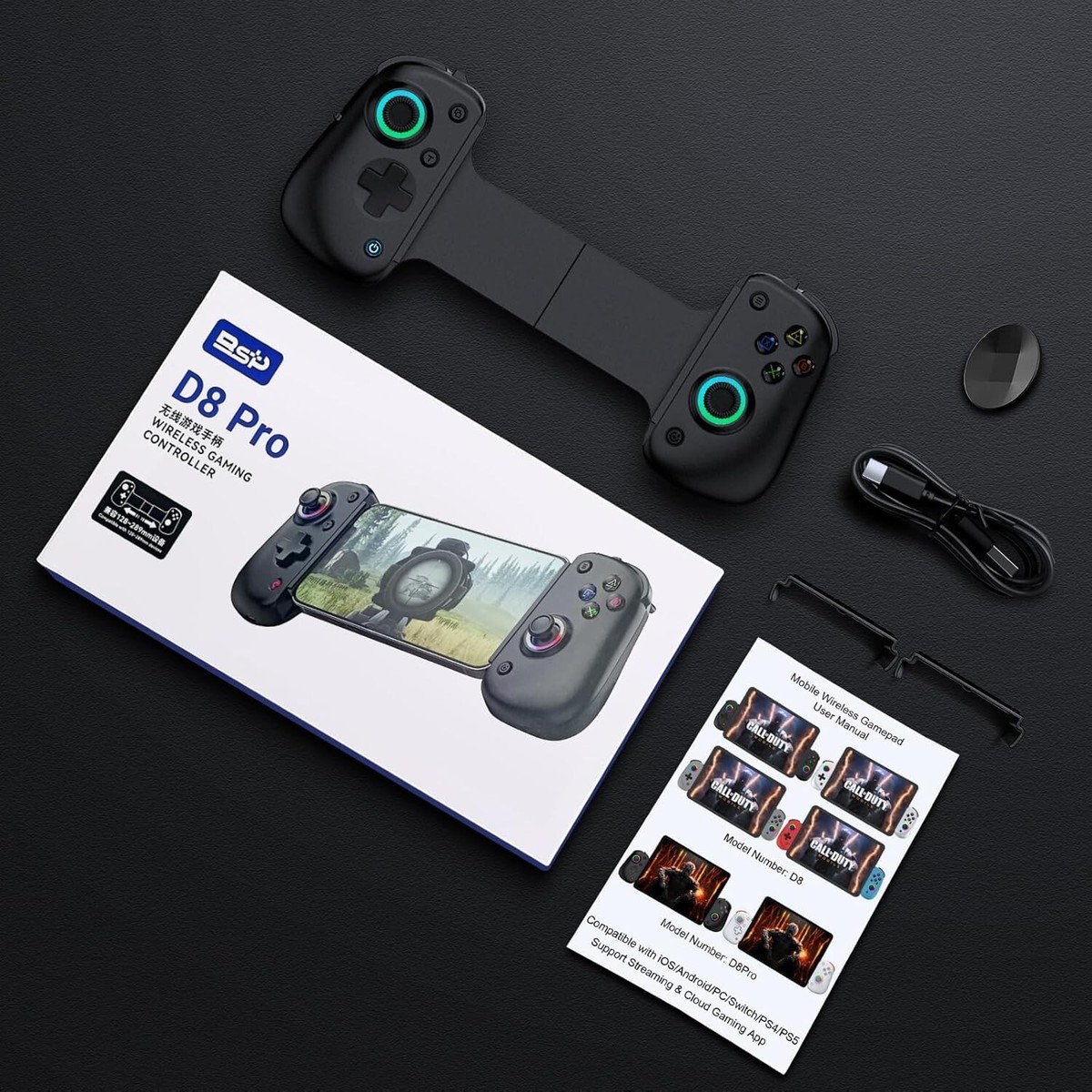
- 1× BSP D8 wireless controller
- 1× USB Type-C charging cable
- 1× User manual
Ready to Play? Start with 9,000+ Free Retro Games
Now that your BSP D8 is set up, it's time to put it to work. KhoGameHub hosts over 9,000 retro games playable directly in your browser — no downloads, no installs. NES, SNES, GBA, PS1, Nintendo DS, and more, all powered by EmulatorJS.
The BSP D8 works seamlessly across every platform on KhoGameHub:
- On PC: connect in X-Input Bluetooth or 2.4G mode, open Chrome, and your controller is detected automatically
- On Android: use HID mode for emulators — the most stable setup for browser-based retro gaming
- On iPhone/iPad: connect in MFi mode, open Safari, and tap the screen once to give the emulator focus