What Makes the D9 Different
Most budget wireless controllers share the same core hardware — potentiometer-based joysticks and triggers that wear down over time, developing drift and dead zones after heavy use. The BSP D9 takes a different approach.
Where the BSP D8, D6, and other models in the lineup use standard analog components, the D9 is built around Hall Effect sensors in both the joysticks and the L2/R2 triggers. This single hardware difference changes the feel and longevity of the controller significantly — no calibration drift, no dead zones, and a rated lifespan several times longer than contact-based designs.
If you're planning extended retro gaming sessions or competitive mobile play, the D9 is the most durable option in the BSP range.
Hall Effect Technology Explained
Traditional joysticks use a physical wiper that slides across a resistive track to measure position. Over thousands of inputs, the contact surface wears — leading to the dreaded joystick drift that's plagued controllers from every manufacturer.
Hall Effect sensors work differently. They detect position by measuring changes in a magnetic field, with no physical contact between moving parts. The result:
- No joystick drift — magnetic detection doesn't wear like contact-based components
- No dead zones — input registers immediately from any position
- 0.1mm precision on both triggers and joystick axes
- Longer lifespan — contactless operation dramatically reduces mechanical wear
- Low latency — magnetic sensors respond faster than resistive tracks
💡 Why this matters for retro gaming: Precision analog input is critical for PS1-era 3D games and racing titles. Hall Effect triggers in particular make a noticeable difference in games with analog acceleration — like Gran Turismo or any driving title on KhoGameHub.
Button Layout & Components
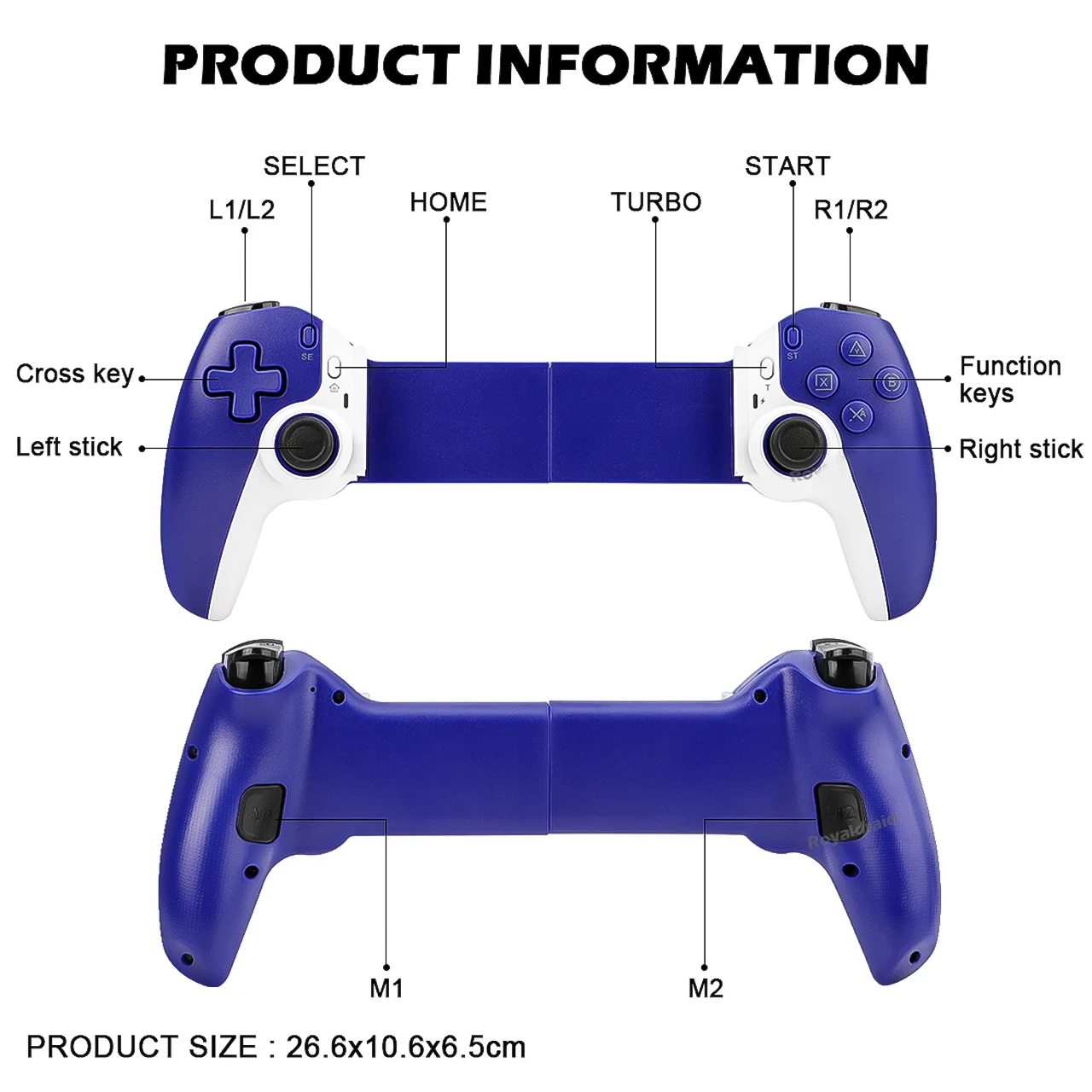
Front Face
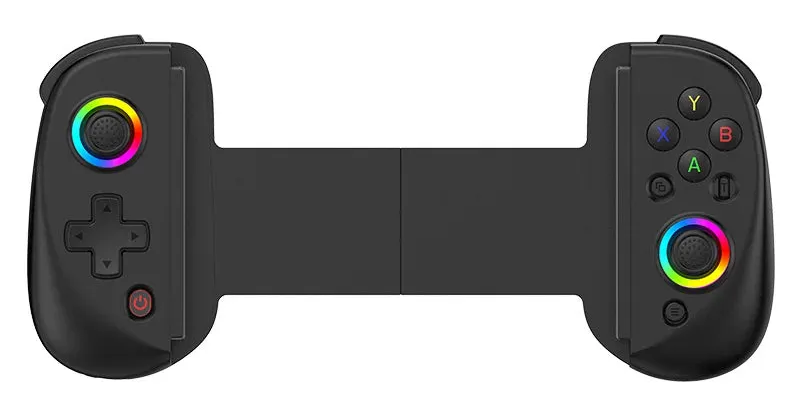
- D-Pad — 4-directional navigation input
- A / B / X / Y — standard action buttons
- L1 / R1 — shoulder bumpers
- L2 / R2 — Hall Effect analog triggers
- Left Joystick / L3 — Hall Effect analog stick, press to activate L3
- Right Joystick / R3 — Hall Effect analog stick, press to activate R3
- SELECT / START — system function buttons
- Home — returns to device home screen or menu
- TURBO — activates auto-fire function
Rear Face
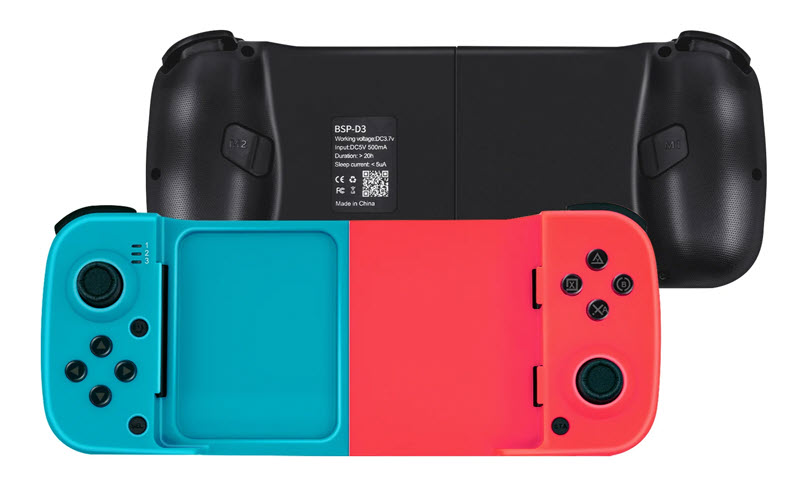
- M1 / M2 — programmable macro paddle buttons
Indicators
- Status indicator — shows connection state
- Charge indicator — shows battery and charging status
Device Compatibility
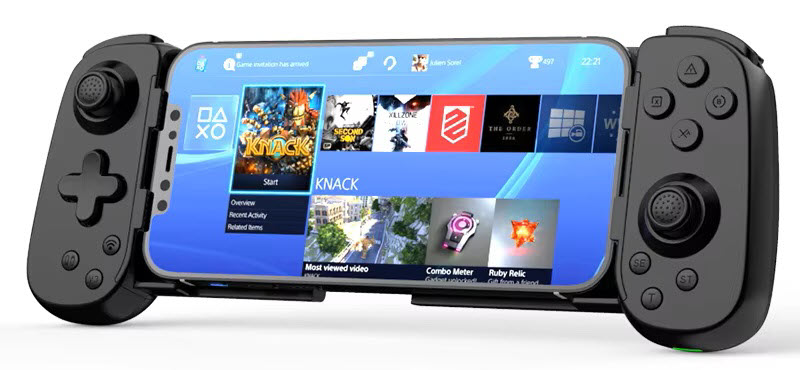
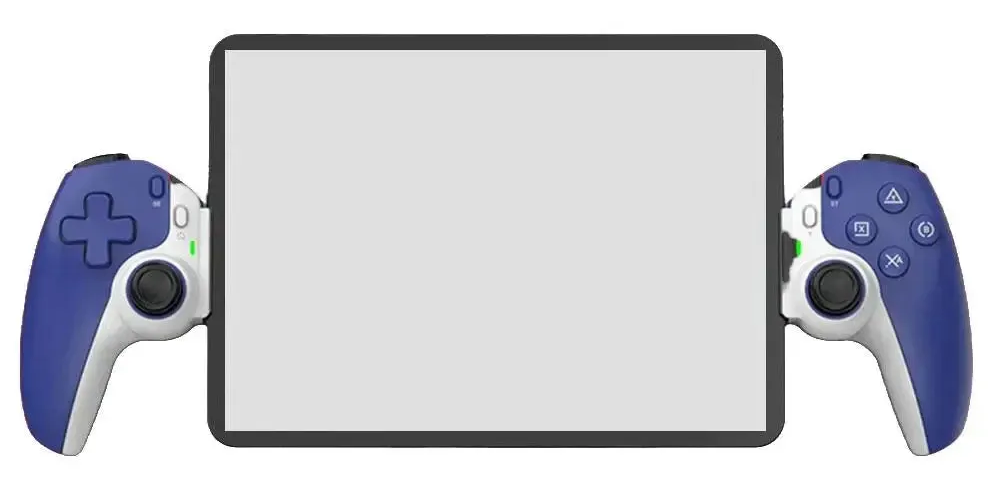
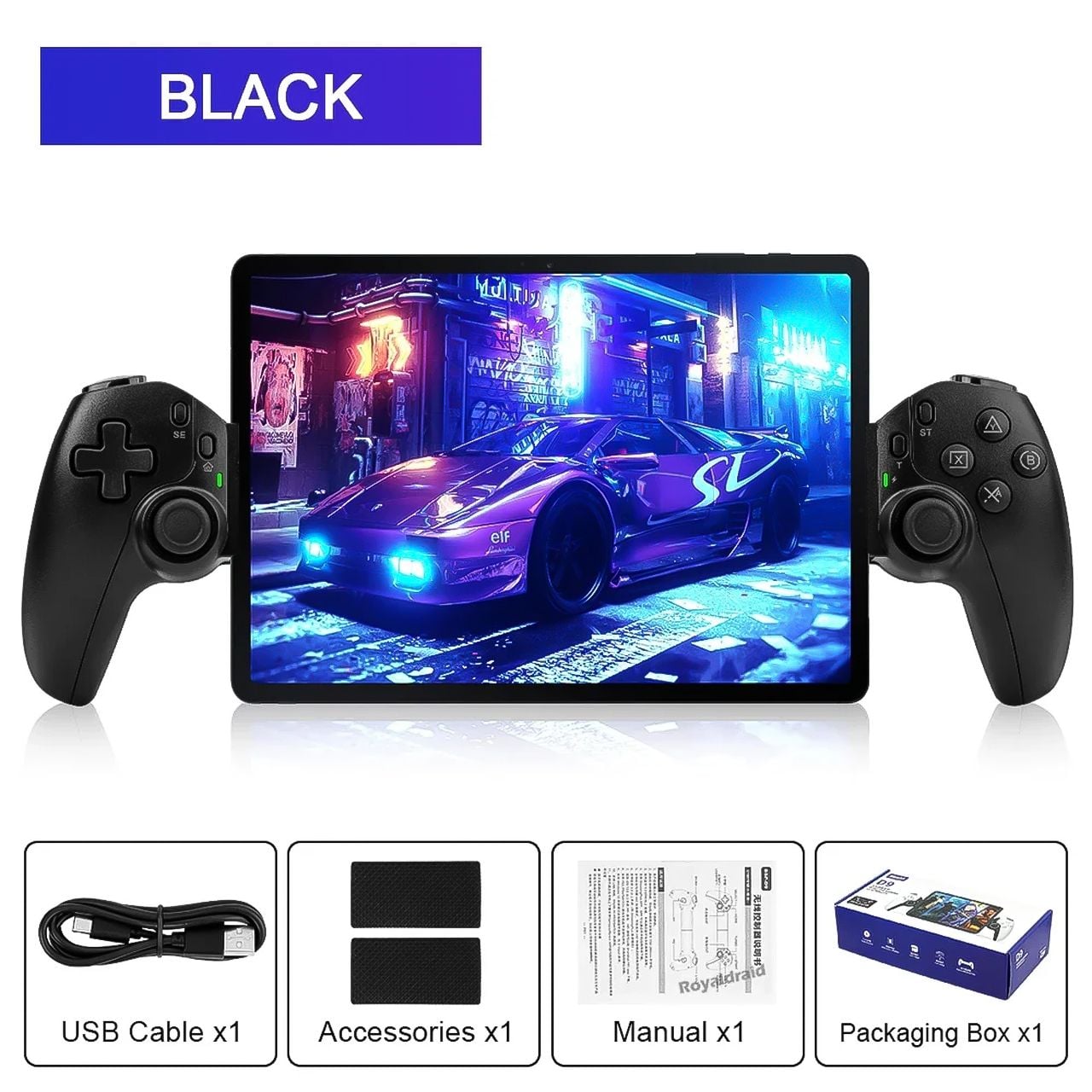
The D9's telescopic grip supports devices from 130mm to 280mm long (roughly 5 to 11 inches) and up to 13mm thick — wide enough to fit most phones with a slim case attached. Full platform support:
- iOS — iPhone, iPad (including iPhone 15 series), MFi games, Apple Arcade, cloud gaming
- Android — standard Bluetooth gamepad, cloud gaming, emulators
- Nintendo Switch — Bluetooth wireless
- PS3 / PS4 — wired and Bluetooth
- Windows PC — X-Input Bluetooth and wired USB
- Cloud gaming — Xbox Cloud Gaming, PlayStation Remote Play, Steam Link, NVIDIA GeForce NOW
Initial Pairing — All Platforms
The D9 uses a unified pairing process compared to other BSP models — Bluetooth is the primary connection method across all platforms.
- Ensure the controller is charged.
- Power on the D9 by pressing the Home button.
- Enable Bluetooth on your target device.
- Scan for available devices and select "BSP D9 Controller" (or similar name).
- The status indicator confirms successful pairing.
| Platform | Connection Type | Device Name to Select |
|---|---|---|
| iOS / iPadOS | Bluetooth MFi | BSP D9 Controller |
| Android | Bluetooth HID | BSP D9 Controller |
| Windows 10/11 | Bluetooth X-Input | BSP D9 Controller |
| Nintendo Switch | Bluetooth | BSP D9 Controller |
| PS3 / PS4 | USB-C wired | Auto-detected |
💡 Re-pairing tip: If the D9 was previously connected to another device, go to your new device's Bluetooth settings and remove any old pairing record before attempting to connect. This prevents connection conflicts.
Mounting Your Device
The D9's grip is designed to hold phones and tablets securely during long sessions:
- Gently extend the controller arms to create space for your device.
- Slide your phone or tablet into the mounting rails — landscape orientation recommended.
- Release the grip slowly until the device is held firmly.
- The design accommodates most slim and silicone cases without removal.
💡 Note: Thick or rugged cases may exceed the 13mm thickness limit. If the grip feels unstable, try removing the case first.
Programming Macro Buttons (M1 / M2)
The M1 and M2 rear paddles can store complex button combinations — executed instantly with a single press. Useful for fighting game combos, ability rotations in RPGs, or any repeated multi-button sequence.
How to Record a Macro
- Hold SELECT + M1 simultaneously for 2 seconds — the LED blinks rapidly to indicate record mode.
- Press the button combination you want to store (e.g. A + B + X + Y, or any sequence up to the supported limit).
- Press M1 once more — LED turns solid, confirming the macro is saved.
- From now on, pressing M1 executes the full stored combination instantly.
Repeat the same process using SELECT + M2 to program the second paddle independently.
How to Clear a Macro
- Hold SELECT + M1 for 2 seconds — LED blinks rapidly.
- Press M1 only — do not press any other buttons.
- LED turns solid — macro cleared.
Supported macro inputs: A / B / X / Y / L1 / L2 / R1 / R2 / D-Pad directions.
TURBO Configuration
TURBO enables rapid repeated input on any mapped button — particularly effective for shooters, farming games, and any title where holding a button is preferable to tapping.
Enable TURBO on a Button
- Hold the TURBO button.
- While holding TURBO, press the action button you want to auto-fire (A, B, X, Y, L1, L2, R1, or R2).
- That button now fires continuously when held.
Change TURBO Speed
While the TURBO-mapped button is held, press TURBO again to cycle through speeds:
| Speed Setting | Shots per Second | Best For |
|---|---|---|
| Low | 8 / second | Rhythm games, controlled bursts |
| Medium | 15 / second | General shooters, farming |
| High | 25 / second | Fast-paced action, bullet hells |
Disable TURBO
Hold TURBO and press the same action button again to remove auto-fire from that button.
Troubleshooting
| Problem | Likely Cause | Fix |
|---|---|---|
| Controller won't power on | Battery depleted | Charge via included USB cable for at least 30 minutes before retrying |
| Bluetooth won't pair | Bluetooth off, out of range, or interference | Toggle Bluetooth off/on, move controller closer, restart both devices, delete old pairing and retry |
| Buttons or joysticks unresponsive | Connection drop, software glitch, or physical damage | Reconnect controller, restart the game or app, check for firmware updates |
| Device doesn't fit the grip | Device exceeds supported dimensions | Confirm device is 130–280mm long and under 13mm thick; remove bulky cases if needed |
| Macro not executing correctly | Recording error or conflicting input | Clear the macro (SELECT + M1, then M1 only) and re-record from scratch |
Maintenance & Care
- Cleaning: wipe with a soft dry cloth; for stubborn marks, use a slightly damp cloth — no solvents or abrasive cleaners
- Storage: keep in a cool, dry place away from direct sunlight and heat sources
- Battery: charge regularly even during periods of inactivity; avoid fully draining the battery for extended periods
- Impact: avoid drops — Hall Effect sensors are robust but the housing is not impact-rated
- Liquid exposure: power off immediately if liquid contacts the controller; allow to dry completely before use
Full Specifications
| Specification | Detail |
|---|---|
| Model | BODBR2SZZ6 (BSP D9) |
| Manufacturer | ShenZhen ShanWan Technology Co., Ltd |
| Joystick / Trigger Technology | Hall Effect (magnetic, contactless) |
| Trigger Precision | 0.1mm |
| Compatible Platforms | iOS, Android, Nintendo Switch, PS3, PS4, Windows PC |
| Device Length Support | 130mm – 280mm (5–11 inches) |
| Max Device Thickness | 13mm |
| Programmable Buttons | M1, M2 (rear paddles) |
| TURBO Speeds | 8 / 15 / 25 shots per second |
| Connectivity | Bluetooth 5.0 / USB-C wired |
| Cloud Gaming Support | Xbox Cloud Gaming, PS Remote Play, Steam Link, GeForce NOW |
Put the D9 to Work — 9,000+ Retro Games Waiting
The BSP D9's Hall Effect precision makes it one of the best controllers for browser-based emulation — especially for PS1 3D titles and racing games where analog accuracy actually matters. KhoGameHub gives you instant access to over 9,000 retro games across NES, SNES, GBA, PS1, Nintendo DS, and more — all running in your browser through EmulatorJS, zero downloads required.
Connect the D9 via Bluetooth before opening your browser. EmulatorJS detects it automatically — no manual button mapping needed for most titles. For PS1 racing games in particular, the Hall Effect L2/R2 triggers deliver the analog throttle control these games were originally designed for.