Overview & What's in the Box
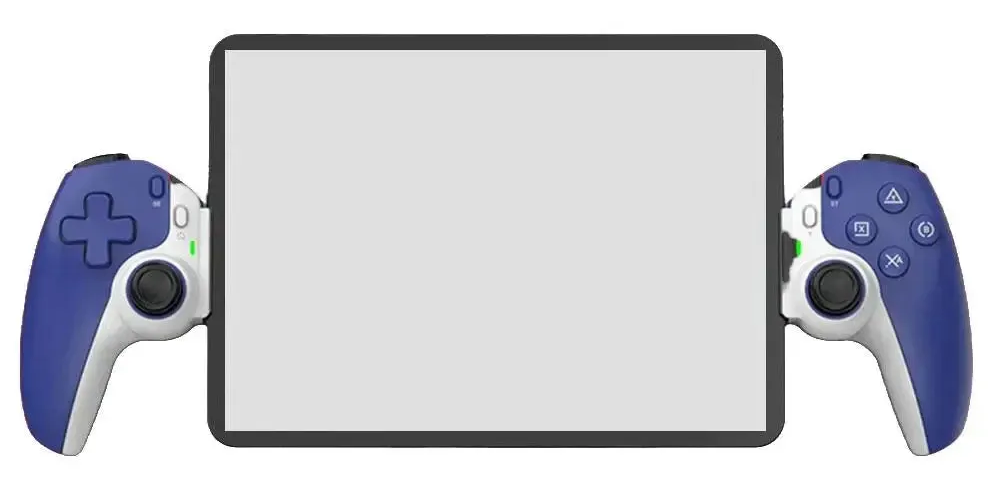
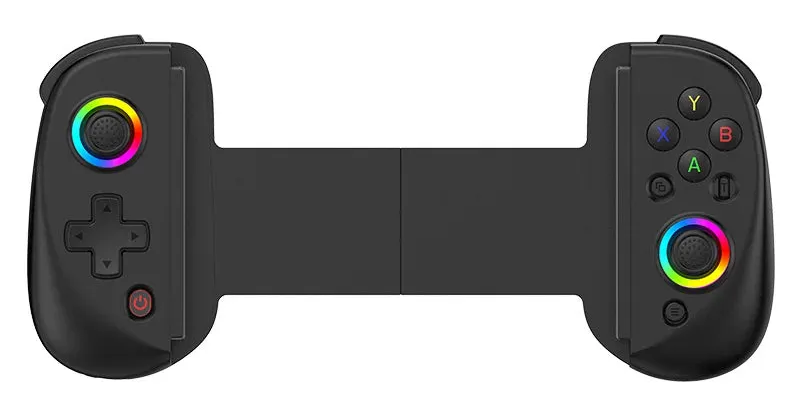
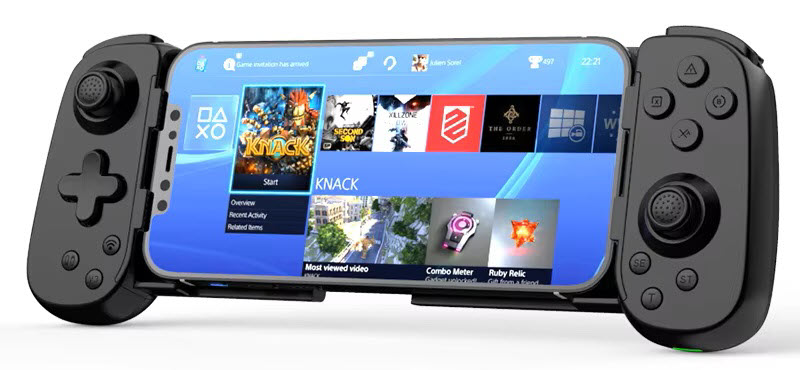
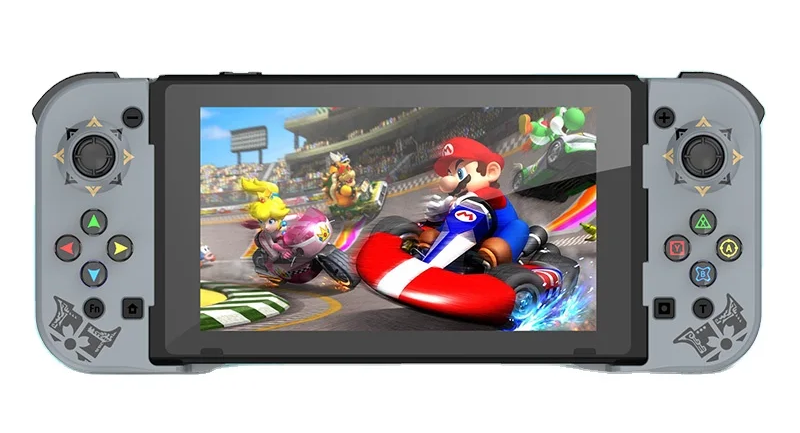
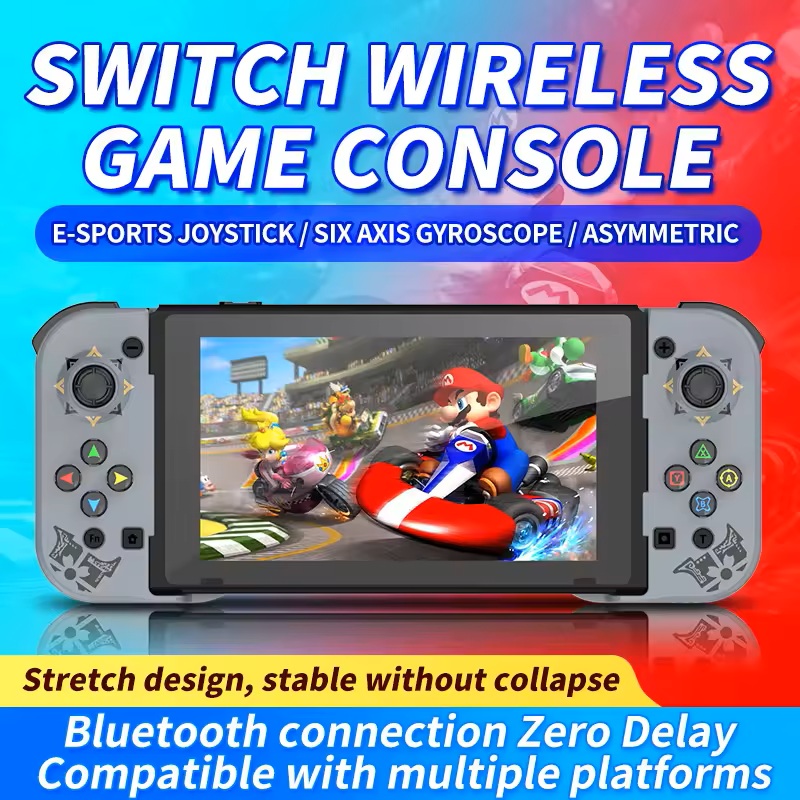
The BSP D5 is a multi-platform wireless controller built for serious retro and mobile gaming. It features Bluetooth 5.0, a 6-axis gyroscope, dual asymmetric rumble motors, and a telescopic grip that clamps onto phones and tablets. Whether you're playing on Nintendo Switch, emulating PS1 games on PC, or running mobile titles on Android — the D5 covers all bases in one compact package.
Every BSP D5 package includes:
- 1× BSP D5 wireless controller
- 1× USB charging cable
- 1× User manual
Charging the Controller
The BSP D5 runs on a built-in 350mAh lithium battery. Before first use — or when the battery is low — connect the controller to any USB power source using the included cable.
- The LED indicator lights up during charging
- LED turns off when fully charged
- A full charge delivers approximately 8 hours of continuous play
💡 Tip: Charge the controller when battery drops to around 20% to maintain long-term battery health.
Device Compatibility
The BSP D5 supports the following platforms out of the box:
- Nintendo Switch
- PC — Windows 10 and above (via Bluetooth or USB)
- iOS — MFi mode on iOS 13/14/15 and macOS
- Android — Standard HID mode and V3 Direct Mode
The telescopic grip accommodates devices between 129mm and 178mm wide, covering most modern smartphones and small tablets.
Connect to Nintendo Switch
- Power on the controller by holding the power button.
- Hold RT + Power simultaneously for 2 seconds to enter Switch mode.
- The LED will flash (LED1 + LED2 blinking).
- On your Switch, go to Settings → Controllers → Change Grip/Order.
- Press LB + RB on the controller to begin pairing.
- Select the matching device name on the Switch screen.
- When connected, LED1 and LED2 stay solid.
Connect to PC (Windows 10+)
- Power on the controller.
- Hold RB + Power for 2 seconds to enter PC Bluetooth mode (Xbox mode).
- The LED will flash rapidly — controller is now discoverable.
- On your PC, open Settings → Bluetooth → Add Device.
- Select "Xbox Wireless Controller" from the device list.
- LED turns solid green when paired successfully.
💡 Note: The controller identifies as an Xbox controller on Windows for maximum game compatibility. Most PC games and emulators will auto-detect it.
Connect to Android
- Power on the controller.
- Hold X + Power for 2 seconds to enter Android standard mode.
- LED flashes rapidly — controller is pairing.
- On your phone, go to Settings → Bluetooth and scan for devices.
- Select "BSP-D5" from the list.
- LED turns solid orange when connected.
Connect to iPhone / iPad (iOS MFi)
- Power on the controller.
- Hold B + Power for 2 seconds to enter iOS MFi mode.
- LED flashes — controller is discoverable.
- On your iPhone or iPad, go to Settings → Bluetooth.
- Select "DUALSHOCK 4 Wireless Controller" from the list.
- LED turns solid purple when paired.
💡 Note: iOS MFi mode requires iOS 13 or later. Only MFi-certified games will fully support controller input.
Wired Connection via USB-C
For a zero-latency, no-pairing option, connect the BSP D5 directly to your device using a USB Type-C cable.
- The controller auto-detects the connected platform (PC, PS3/PS4, Switch)
- On PC, you can switch between X-input and D-input modes using the button combination listed in the manual
- Wired mode also charges the controller simultaneously
Controller Features Explained
3D Analog Joysticks
Esports-grade dual analog sticks with full 360° input range. Designed for precision with no drift — critical for platformers and action games on emulators.
6-Axis Gyroscope
The built-in gyroscope enables motion-based control, mirroring how the Nintendo Switch Pro Controller handles games like Zelda: Breath of the Wild or Splatoon. Works on compatible Switch and PC titles.
Dual Asymmetric Rumble Motors
Independent motors on each side of the controller deliver different vibration intensities, creating immersive haptic feedback that varies by in-game event — explosions feel different from footsteps.
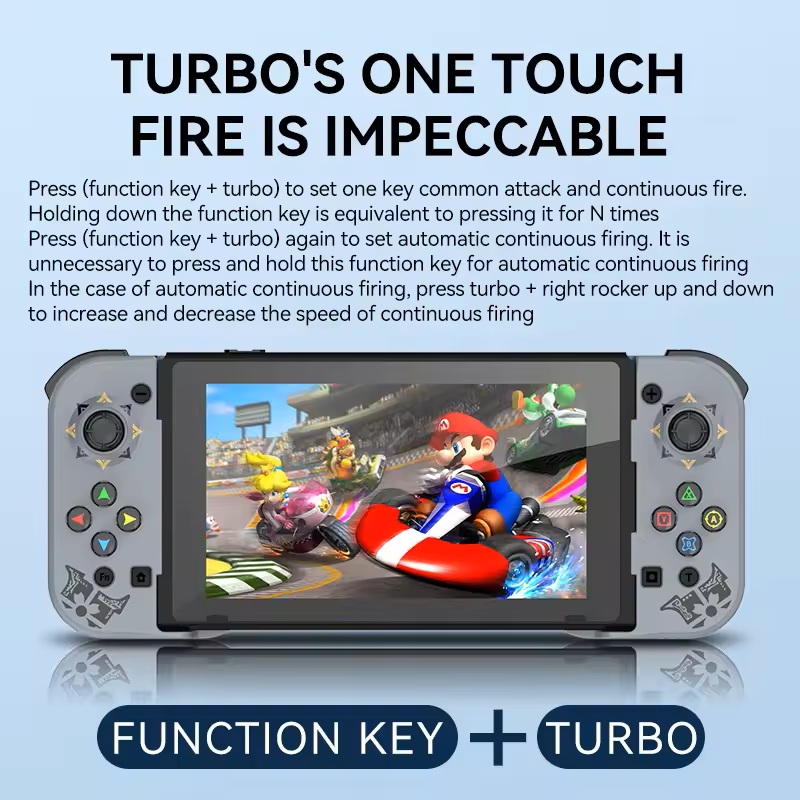
TURBO (Auto-Fire) Function
- Press TURBO + any action button to enable auto-fire on that button
- Press the same combination again to activate full auto mode (no need to hold the button)
- Adjust fire rate by pressing TURBO + Right Analog Stick Up/Down
Macro Keys
The rear paddle buttons can be programmed with custom macro combinations — store up to 12 simultaneous key inputs per macro. Useful for fighting game combos or complex ability sequences in RPGs.
Screenshot Button
A dedicated screenshot button lets you capture gameplay moments instantly without interrupting your session.
Game & Emulator Compatibility
| Platform | Compatible Games / Use Cases |
|---|---|
| Nintendo Switch | Zelda, Pokémon, Super Mario Odyssey, Fire Emblem, Monster Hunter, FIFA |
| Android | PUBG Mobile, Genshin Impact, Minecraft, Mobile Legends, Call of Duty Mobile |
| iOS (MFi) | Genshin Impact, Fortnite, Call of Duty, Minecraft, Asphalt |
| Emulators | EmulatorJS (browser), PPSSPP (PSP), AetherSX2 (PS2), DraStic (NDS), RetroArch (GBA, SNES, NES) |
🎮 KhoGameHub users: The BSP D5 connects seamlessly to EmulatorJS via Bluetooth. The emulator auto-maps all buttons — no manual configuration needed. Works with all 7,000+ games in our library.
Troubleshooting Common Issues
| Problem | Solution |
|---|---|
| Controller won't power on | Charge for at least 30 minutes before retrying |
| Bluetooth won't pair | Toggle Bluetooth off/on, delete old pairing records, restart controller |
| Buttons or joystick not responding | Restart controller, check battery, confirm game supports gamepad input |
| Rumble not working | Check vibration settings in-game and in controller settings |
| Device doesn't fit the grip | Confirm device width is between 129mm–178mm |
| Can't find device during pairing | Hold power button for 8 seconds to fully shut down, then restart and try again |
Full Specifications
| Specification | Detail |
|---|---|
| Model | BSP-D5 |
| Dimensions (L × W × H) | 210mm × 105mm × 42mm |
| Weight | 169.6g |
| Battery | 350mAh lithium |
| Battery Life | ~8 hours continuous |
| Connectivity | Bluetooth 5.0 / USB Type-C wired |
| Compatible Platforms | PC, Nintendo Switch, iOS, Android |
| Grip Width Range | 129mm – 178mm |
| Key Features | 6-axis gyroscope, TURBO, dual rumble, macro keys, screenshot button |
Pro Tips for Gamers
- Test TURBO speeds — different games benefit from different fire rates. Start at medium speed and adjust based on the game's hit registration.
- Use rear macro paddles for fighting game combos or skill rotations in RPGs — program them once and execute complex inputs with a single press.
- Always verify game compatibility before a long session. MFi mode on iOS only works with games that officially support controllers.
- Update firmware when the manufacturer releases new versions — updates often improve latency and add new platform support.
- For emulator gaming on KhoGameHub, connect via Bluetooth before opening the browser. EmulatorJS detects the controller on page load for the smoothest experience.